
时间:2026-11-29 01:54 | 来源:墨客学术 | 作者:墨客学术 | 点击:次
Get Started in 5 Easy Steps
1. Run the Auto-Configuration Wizard
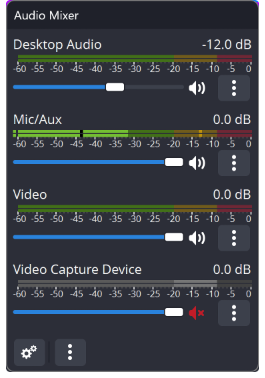
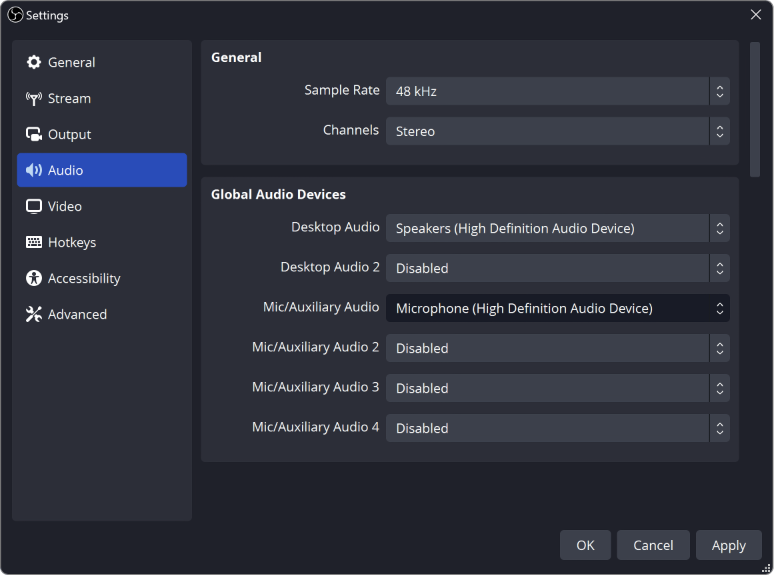
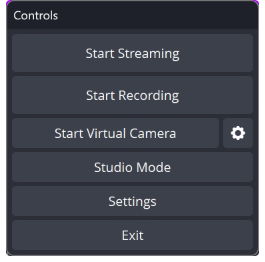
First things first, let's start by setting up the best settings for your recordings and streams. The Auto-Configuration Wizard optimises OBS Studio for your needs, whether you're streaming fast-paced gameplay or recording high-fidelity video. It takes into account what you want to do in OBS Studio, your computer's hardware resources, and your network conditions (if you're streaming). The wizard shows the first time you run OBS Studio. If you wish to use it again, click on the Tools menu → Auto-Configuration Wizard. When you start OBS Studio, you start with a blank scene by default. You can add all kinds of Sources — to show images, text, video, your webcam, game play, desktop, etc. At the bottom of the main window is the Sources Dock. Click on the + symbol to add a source of your choice. Here are a few basic Sources to get you started: By default, OBS Studio is set to capture your desktop audio and microphone. You can verify this by looking at the volume meters in the Audio Mixer (pictured left) at the bottom of the main OBS Studio window. If they aren't moving, or you suspect the wrong device is being captured, click on Settings → Audio and select the devices manually. Double check that all your settings are how you want them in Settings → Output. Then, click Start Recording or Start Streaming on the Controls Dock (pictured left). We strongly encourage running a test for a few minutes to make sure that there are no issues, rather than just jumping in to your first stream or recording. Once you're satisfied, you can go on to creating great content. That's all there is to it!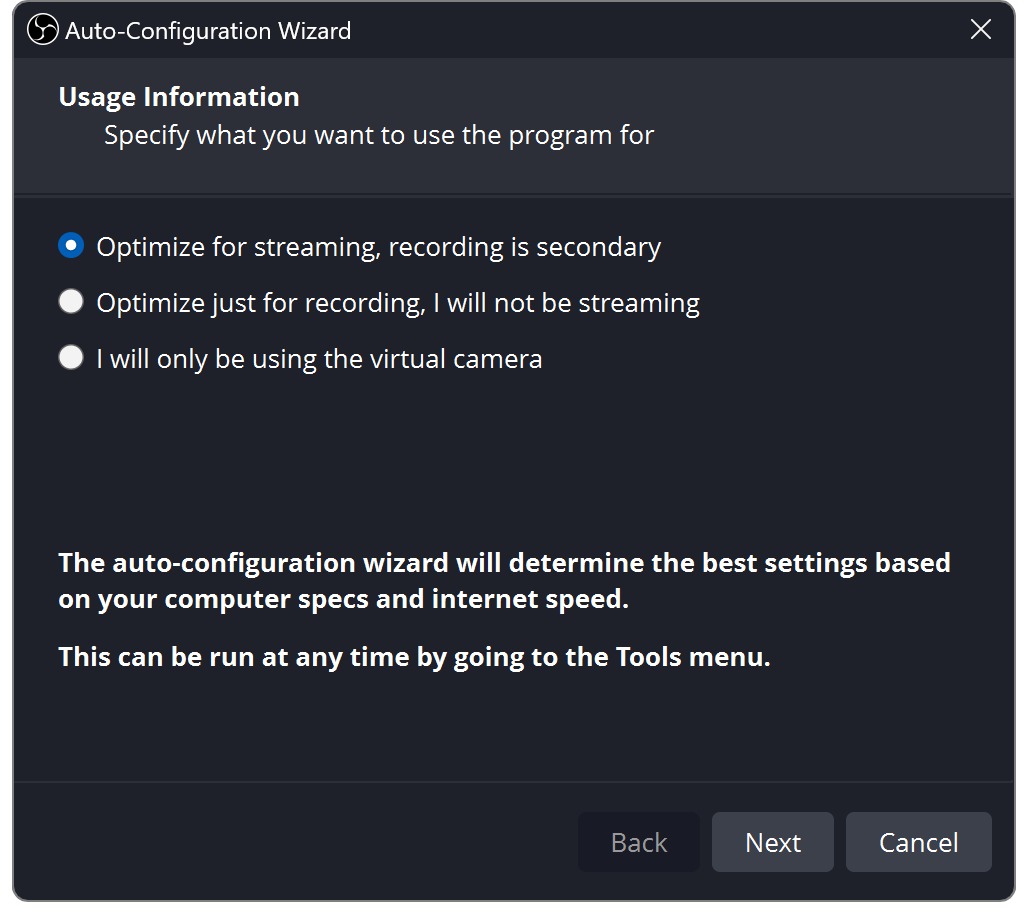
2. Add Sources to your Scenes
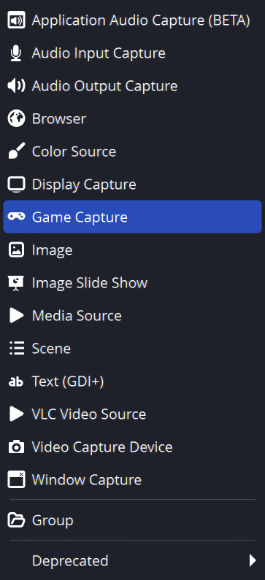
Display Capture Source and Window Capture Source for Windows and Linux, and macOS Screen Capture Source for macOS — capture your desktop or a single window
Game Capture (Windows only) to capture 3D games with the highest performance
Video Capture Source to capture your webcam and/or capture cards
For more information on the various sources, check the Sources Guide
3. Set up your Audio
4. Test your Settings
5. There is no Step 5!
Further Reading
For more tips for setting up a gaming stream, check the following tutorials:
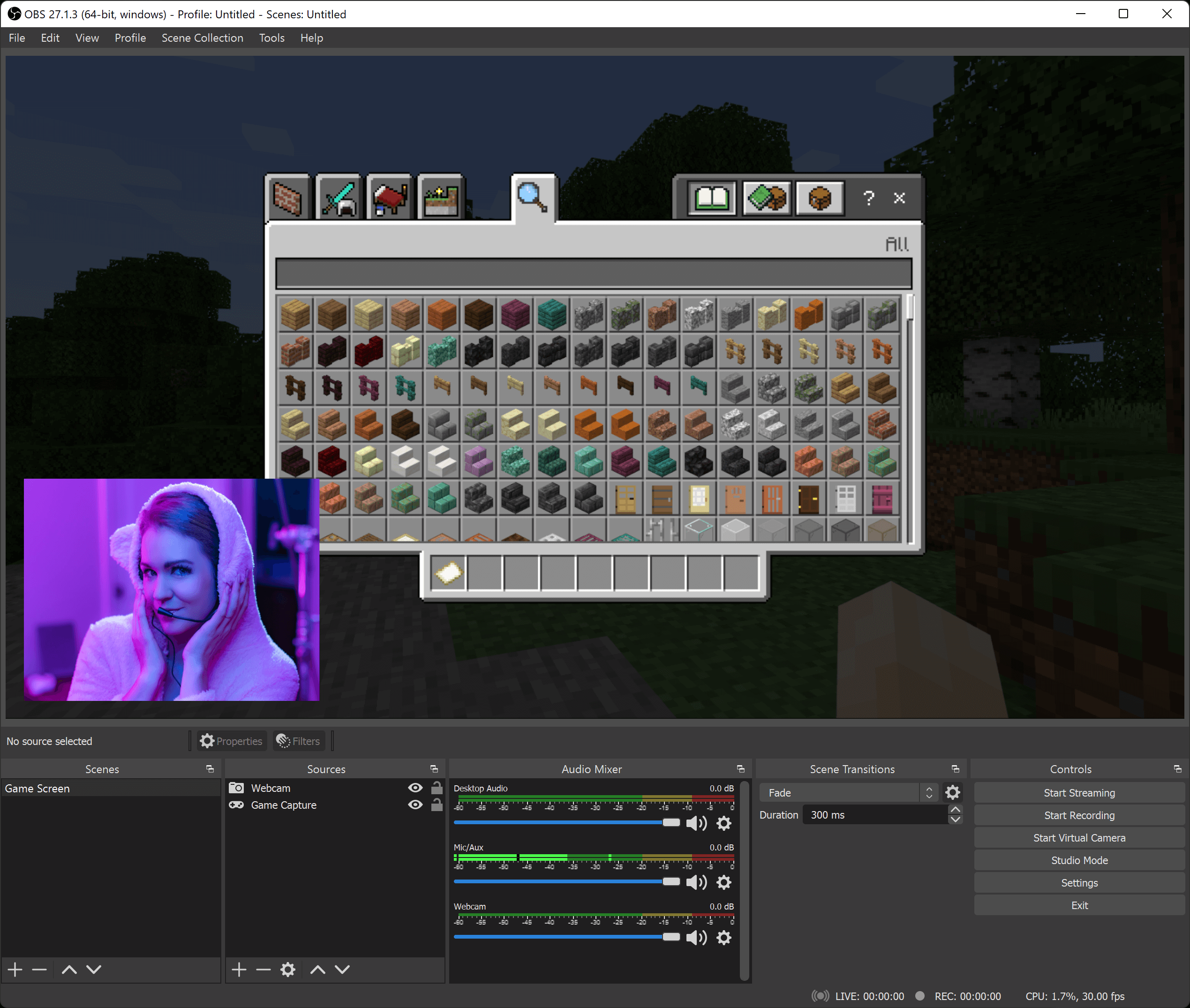
Stream Layout Tutorial 1: Game Screen
Stream Layout Tutorial 2: Alerts & Chat Box
Stream Layout Tutorial 3: Starting and BRB Screens
If you encounter any issues or need further assistance, check out our Help Portal. You can also visit our official OBS Community Discord server for more support.